How to Compare Documents With AI: A Checkable Workflow
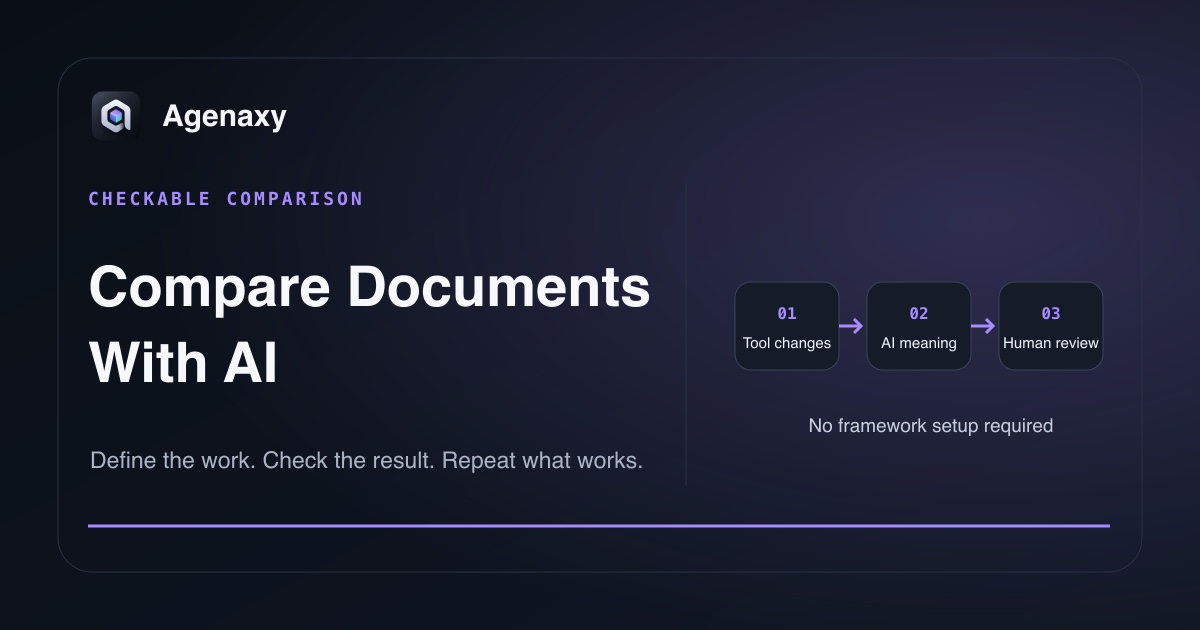
Quick answer: First use a comparison tool suited to the file format to generate a mechanical difference record for the representation it inspects. Record the comparison settings, every tool-reported change, and unmatched content. Then use AI to classify and explain those rows while keeping both source locations. A person verifies the wording and decides what it means.
AI is useful for interpretation. It is not a substitute for the mechanical comparison record and direct source verification when one word, number, or exception can matter.
Start by confirming the two versions
Before comparing, record:
| Field | Version A | Version B |
|---|---|---|
| Filename | policy-2025-01.docx |
policy-2026-01-proposed.docx |
| Document title | Data handling policy | Data handling policy |
| Status | Approved | Proposed |
| Effective date | 2025-01-15 | Not yet effective |
| Source | Policy archive | Review folder |
| File fingerprint or snapshot note | Optional identity check | Optional identity check |
Do not assume similarly named files are true versions of the same document. One might be a summary, regional edition, redacted copy, or unrelated template.
Work on copies. Keep the originals unchanged.
Separate two different jobs
Layer 1: What did the comparison tool report?
Choose a tool suited to the file format. Record the compared representation, settings, and how existing tracked changes are handled. Then inventory what the tool reports:
- inserted text;
- deleted text;
- replacements;
- moved sections when the tool can identify them;
- formatting changes when relevant;
- sections that could not be matched.
Microsoft Word's legal-blackline workflow, for example, lets the user choose comparison categories and character- or word-level display. Its default new-document path shows changes in a third document. Because other output choices and existing tracked changes require separate handling, record the settings instead of assuming every Word comparison behaves identically.
Assign each tool-reported revision or change block a stable ID such as C-001. Record the total count, enabled comparison categories, unsupported or unmatched content, and the reference needed to reopen that change. This inventory is the completeness baseline for the AI layer; it is not proof that the compare tool could see every meaningful element in the source files.
Layer 2: What might the changes mean?
Use AI to:
- group related edits;
- explain wording in plain language;
- identify changed dates, amounts, duties, exclusions, or definitions;
- propose an impact category;
- connect a definition change to sections that use the term;
- flag ambiguity and questions for review.
The second layer should reference the first. It must not replace or rewrite the mechanical change record.
Ask for a change register
A useful artifact is change-register.csv or change-register.md:
| ID | Status | Scope reason / notes | A anchor | B anchor | Comparison reference | Old wording | New wording | Possible impact | Decision |
|---|---|---|---|---|---|---|---|---|---|
| C-001 | Included | — | §4.2 | §4.2 | Revision 18 | “30 days” | “90 days” | Longer retention period | Needs Review |
| C-002 | Included | — | — | §7.1 | Revision 24 | — | “within five business days” | New deadline | Needs Review |
| C-003 | Out of scope | Formatting-only change excluded by the review brief | Definition | Definition | Revision 31 | [short text] | [short text] | — | Needs Review |
Keep exact passages short enough to inspect, or link each row to the comparison document and both source locations. Never invent missing old or new wording.
Use categories that match the decision
For a policy or contract, useful categories might include:
- dates and deadlines;
- money, thresholds, or quantities;
- responsibilities and approvals;
- definitions;
- scope and exclusions;
- data handling and retention;
- termination or renewal;
- new, removed, or unmatched sections.
For a report, you might instead use changed metrics, assumptions, conclusions, risks, and recommendations.
Do not call every edit “material.” Materiality depends on context and often requires professional or organizational judgment. Use neutral labels such as Possible impact and Needs Review.
A complete comparison work order
Outcome:
Create change-register.md for the two selected document copies.

Version rule:
Version A is the approved 2025 policy. Version B is the 2026 proposal.

Mechanical-change source:
Use the supplied comparison output and Layer 1 inventory as the record of
tool-reported insertions and deletions. Record the compare settings and unmatched content.
Do not infer a mechanical change from memory or summary text.

Artifact:
For each change include ID, Included/Out of scope status, Version A anchor,
Version B anchor, comparison reference, short old and new wording,
plain-language explanation, possible impact, confidence, and Needs Review.

Boundaries:
Do not edit originals, decide legal meaning, approve changes, or send anything.

Done:
Every Layer 1 ID is Included or explicitly marked Out of scope with a reason.
Every row links back to both applicable versions and the comparison output.
Unsupported and unmatched content remains visible.
Handle PDFs and scans carefully
Comparing text-based DOCX files is different from comparing scanned PDFs. Optical character recognition (OCR) creates searchable text from page images, and the recognized text can contain errors that must be checked against those images. Adobe documents this review step in its OCR guidance.
If OCR is required:
- record which files and pages used OCR;
- compare extracted text;
- verify high-impact differences against the page images;
- label uncertain matches instead of silently resolving them.
If the chosen comparison tool reports a section as unmatched, keep that condition visible instead of asking AI to silently pair it.
Review the high-impact rows first
Prioritize rows containing:
- changed numbers, units, currencies, or dates;
not,unless,except,only,may,must, orshall;- added or removed definitions;
- new permissions, duties, approvals, or external actions;
- missing matches and low-confidence explanations.
Then sample supposedly low-impact edits. AI categorization can overlook a small wording change with a large practical effect.
Check both completeness and interpretation
Completeness check
- Does every ID in the Layer 1 inventory appear as Included or Out of scope with a reason?
- Are the comparison settings, total reported count, and unsupported content recorded?
- Are unmatched, moved, formatting-only, and unreadable items visible?
- Are excluded changes counted and explained?
Interpretation check
- Does the old and new wording match the originals?
- Does the explanation preserve exceptions and defined terms?
- Are impacts phrased as proposals rather than settled decisions?
- Has a qualified person reviewed domain-specific conclusions?
Passing one check does not imply the other passed.
When AI adds little value
Skip the AI layer when:
- you only need an exact redline;
- the document is short and the changes are already clear;
- policy forbids the selected data path;
- nobody will use or review the explanation;
- a fixed rule can categorize every change more reliably.
Use the simplest tool that produces the evidence you need.
Data access is a separate decision
Comparison quality does not reveal where document text is processed. Check the selected model, application permissions, enabled tools, OCR service, and usage or diagnostic data.
A local model keeps inference on the machine. A remote model receives the context sent to it. Other tools and services may create separate paths, so inspect the complete workflow.
Where Agenaxy fits
Agenaxy is a local-first AI agent workbench for selected file-based work. Activity exposes the work performed, while editable Artifacts can hold the change register outside chat.
Standard can use a selected local or cloud model. In Vault, every model Connection must be explicitly authorized. An authorized remote model still receives sent context, while outbound-data tools remain unavailable and agent-run scripts are blocked from network access.
Read document chat versus agent work to choose the right mode, or write an agent work order before running the comparison workflow.
Define one comparison artifact
Describe a non-confidential document type and desired comparison artifact, such as a change register or review memo, in Download Agenaxy. Do not submit documents, credentials, customer records, or production data through the form.
FAQ
Can AI compare two documents accurately?
AI can help explain and organize differences, but the mechanical change record should come from a format-appropriate compare or diff tool. Record its settings and unsupported content, then verify important wording in both sources.
Can AI decide which contract changes are important?
It can propose categories and possible impacts. A qualified person should decide materiality and any legal or business response.
What if the section numbers changed?
Keep old and new headings, text anchors, and unmatched sections. Do not rely only on section numbers to pair content.
Should the AI rewrite the revised document too?
Not in the same first pass. Review the change register before authorizing a separate drafting task, and keep proposed edits in a new artifact.
Sources and Fact-Checking Notes
- Microsoft — Compare document differences using the legal blackline option documents configurable Word comparison categories, display granularity, output choices, and tracked-change handling.
- Adobe — Fix text issues in scanned PDFs documents review and correction of uncertain OCR text.
- Agenaxy product statements are checked against
agenaxy/apps/site/public/llms-full.txtand ADR-066.